New-Hire Onboarding Checklist
The master checklist for every new hire, in order. Work it top to bottom — nothing in a later section counts as done just because an earlier one is. Type the hire's details in the fields and tick the boxes as you go — this browser remembers your entries on this device, so you can close the page and pick up where you left off. Print it for a paper copy for the hire's file.
Sends the hire's name, track, and sign-in email to Ziggy, who adds it to the portal + training gates (section 3 below). Ziggy confirms back once the gates are updated.
Once Ziggy confirms the gates, use the “Email the hire their portal sign-in link” button at the bottom of this page (next to Print) — it opens a ready-to-send email in your mail app, or use the Outlook web link beside it to compose from southcharlotte@mrhandyman.com. Check the From line shows that address, then just press Send. Prefer to text it instead? The “Text the hire…” buttons at the bottom queue the same two messages (portal sign-in link, background & drug-test steps) for Ziggy to send from the business texting number — fill in the hire's mobile phone above first.
1 · Offer & acceptance — Tim
- Personalized offer letter sent (name in the greeting + acceptance line; start date stays TBD in the letter)
- Cover email sent from Tim.Steffens@mrhandyman.com; exactly one copy verified in Sent Items
- Signed acceptance returned (hire signs/dates the acceptance line and replies with a scan/photo of the signed page)
- Employment agreement signed copy received and filed with the signed letter
Need the letter built? Ask Ziggy to build the offer letter →
2 · Pre-employment checks — office (Ingrid)
Start date is NOT promised until all three clear.
- Background check initiated — screening-service invitation sent to the hire (vendor: ask Ingrid — not yet recorded)
- Hire sent their background & drug-test steps — the email or text button at the bottom of this page
- Background check complete — results reviewed; anything flagged goes to Tim for the approve / decline call
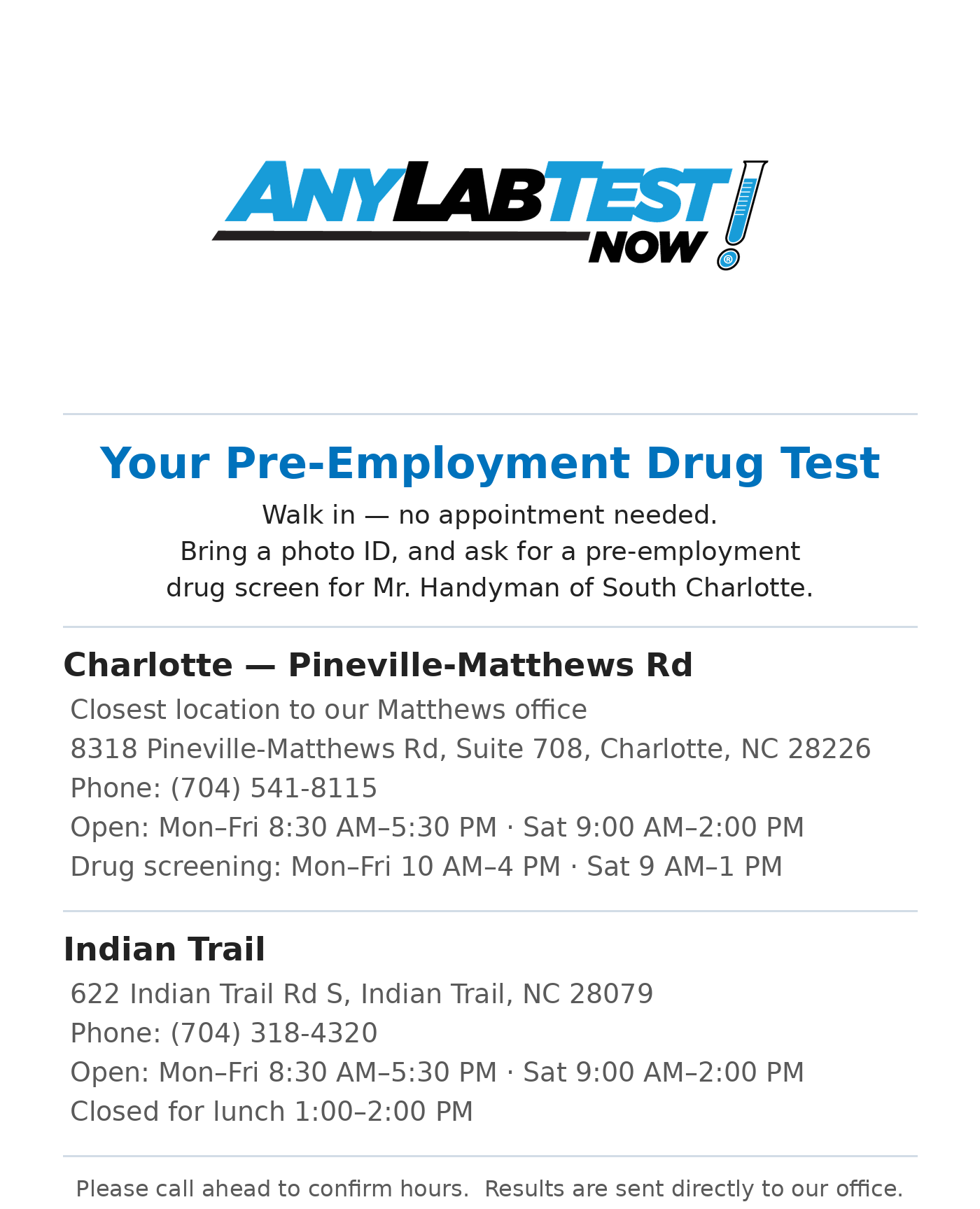
- Drug test complete — Any Lab Test Now, walk-in with photo ID (sites below)
- DMV driving record (MVR) supplied by the hire and reviewed — flags to Tim (technicians)
- Returning employee? Check for an old/deactivated record before creating anything new — reactivate where possible
- Start date set with the hire once checks are done
Any Lab Test Now — nearest sites: Charlotte · 8318 Pineville-Matthews Rd, Ste 708 (28226) · (704) 541-8115 · drug screening Mon–Fri 10–4, Sat 9–1 · Indian Trail · 622 Indian Trail Rd S (28079) · (704) 318-4320 · closed for lunch 1–2 PM. Walk-in, no appointment; the hire takes a photo ID and results come to the office. (The Ayrsley store is no longer Any Lab Test Now — it's ARCpoint Labs now; verified Nov 10, 2026.)
3 · Systems & access — BEFORE Day 1
- Sign-in email captured and confirmed with the hire — the inbox they will actually check for sign-in codes; every gate keys off this exact address
- Gate adds — tell Ziggy the email; Ziggy adds it to the team portal (whole site + their area: tech or CSR) and the training site. The office gate is never for new hires
- Portal link sent to the hire — team.mrhandymannc.com — sign-in is an emailed one-time code, no password
- ServiceTitan profile created (or reactivated) + added to Technician Shifts + visible on the dispatch board (technicians)
- Payroll set up from the signed offer terms (pay basis, guarantee/draw terms exactly as offered); first pay run after start verified against those terms
- Employee Amex card ordered, if the role gets one — and confirm whose 5120 account their charges map to
- Training track assigned (Ingrid, Step 0 of the training process): correct track, modules queued
- First-week pairing set: ride-along tech or shadowing CSR, named
4 · Hire paperwork — portal packet
The packet lands in the “Employee Portal” shared drive → Employee Portal Uploads → the hire's folder; the office queue above is the backup copy.
- Personal information + emergency contact
- Direct deposit (optional)
- Federal W-4
- I-9 Section 1 + Social Security card and photo ID uploads
- Typed signature submitted; packet shows delivered in the office queue
- Employee Handbook acknowledgment signed (packet Step 7) — “Handbook Acknowledgment.pdf” in the hire's Drive folder
- Employment agreement signed (new-hire Service Professionals — packet Step 8, or the Tech page's Agreement Sign-Off if the packet didn't include it) — “Employment Agreement - Signed.pdf” in the hire's Drive folder; owners countersign in Office Review
- I-9 Section 2 completed in person — examine the ORIGINAL documents; complete within 3 business days of the first work day (federal rule — uploads do not replace this)
- Print the pre-filled W-4 / NC-4 / I-9 Section 1 from the hire's Drive folder for wet signatures at the Section 2 visit
5 · Training & first week
- Step 1 Learn: track modules complete; verified in Tortal Reports (Barbara)
- Step 2 Practice: training-room practice done
- Step 3 Pass: rubric review; parked questions answered; ride-along (techs) or live-work review (CSRs); sign-off — Tim certifies techs, Barbara certifies CSRs
- Step 4 File & follow up: sign-off filed; first 1:1 scheduled
6 · Follow-up — Tim's call
- If no signed acceptance by the agreed date, ask Tim whether to send the short “just checking you received it” note — never sent automatically
- Anything still open gets written down here, on this hire's copy — never leave an open item hiding behind later checkmarks
Entries are saved only in this browser, on this device — Tim's and Ingrid's devices each keep their own copy. For a permanent record, print the finished checklist (or print to PDF) for the hire's file.